

How to connect a locally running LLM to your Android watch
If you're already running an LLM locally — with Ollama, LM Studio, llama.cpp, vLLM, or a custom gateway — you can point Hopper straight at it and talk to your own model from your watch. No cloud provider, no per-token bill, and your prompts never leave your machine.
This guide covers the general setup: expose your model as an OpenAI-compatible endpoint, then plug it into Hopper.
What you'll need
- A local LLM with an OpenAI-compatible endpoint. Most local runtimes already support the OpenAI
/v1/chat/completionsformat out of the box — Ollama, LM Studio, llama.cpp's server, vLLM, and similar gateways all expose one. Note the port it listens on. - A way to reach it from your watch. Hopper needs to reach your model over the network. If your watch is on the same Wi-Fi as your machine, its local address works; to use it anywhere, you'll expose it via a tunnel. See How to expose your local LLM endpoint for both.
- An API key or token, if your server requires one. Some local setups run without auth; others (like a gateway in front of your model) issue a token you'll paste into Hopper.
- The model name your server exposes (for example,
llama3.2) — you'll enter it in the config. Not sure what it is? Runcurl <your-endpoint>/v1/modelsto list them.
Step 1: Make sure your endpoint is reachable
Your watch needs an address it can actually reach. What you use depends on where you'll use your watch:
- Local only — if your endpoint is bound to
127.0.0.1(localhost) or a similar local address, Hopper can only connect while it's on the same network as the machine running your model. That's fine for using it at home. - From anywhere — if you want to use your model on the go (cellular, other Wi-Fi), expose it via a tunnel so it gets a public HTTPS URL.
For the full walkthrough of both — binding to your LAN address or setting up a Cloudflare Tunnel — see How to expose your local LLM endpoint. Come back here once you have a URL Hopper can reach.
Step 2: Connect it to Hopper
You can set this up two ways: directly on the watch, or from the phone app (settings then sync to the watch). You don't need the phone app — either path works on its own.
Option A: On the watch
1. On the watch app, open 'Settings'.
2. Disable 'Use Hopper AI' — this is the free AI access available through Hopper.
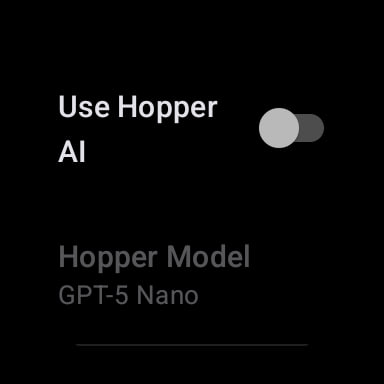
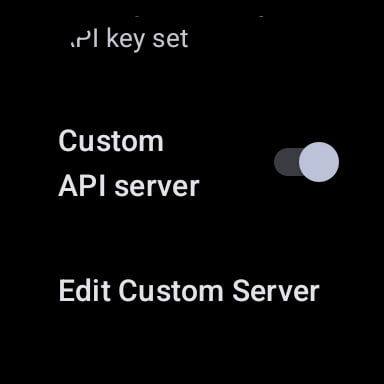
3. Enable 'Custom API server'.
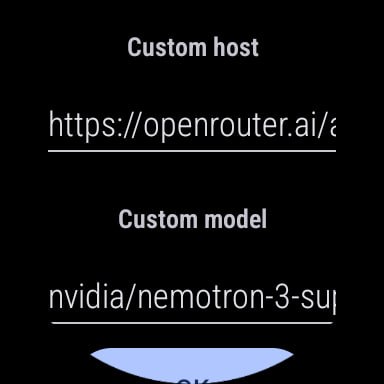
4. Under 'Custom host', enter your OpenAI-compatible endpoint (your public URL followed by /v1, e.g. https://xyz-abc-123.trycloudflare.com/v1). And under 'Custom model', enter the model name your server exposes (for example, llama3.2 or clawdbot:main). Press 'OK'.
6. If your server requires an API key or token, enter it under 'API settings'. If your local server doesn't require one, you can skip this.
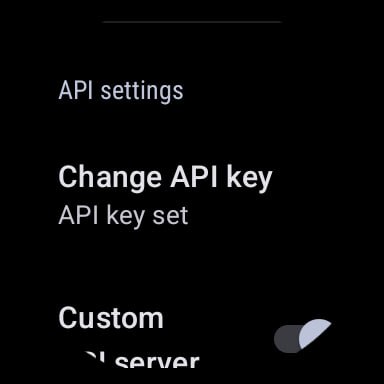
That's it — Hopper on your watch is now talking to your own locally running LLM.
Option B: From the phone app
Prefer to configure it on your phone? In the Hopper Android app, navigate to 'Settings' in the bottom nav-bar.
1. At the top, under the 'Hopper Settings' section, disable 'Free mode'.
2. Under the 'API Settings' section, enable 'Custom server'.
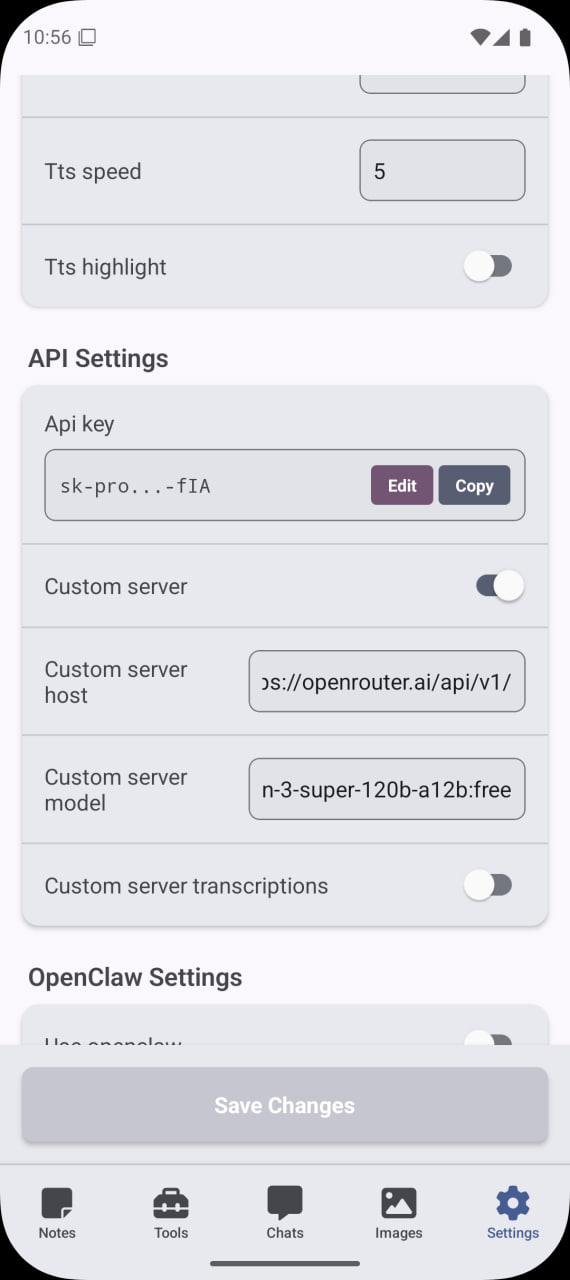
3. In the 'API key' input box, add your server's API key or token. If your local server doesn't require one, you can leave this blank.
4. In the 'Custom server host' input box, add your public URL followed by '/v1'. It should look something like https://xyz-abc-123.trycloudflare.com/v1.
5. In the 'Custom server model' input box, add the model name your server exposes (for example, llama3.2 or clawdbot:main).
6. Hit 'Save Changes'.
Your settings sync automatically to the watch. Hopper is now talking to your own locally running LLM!
Tips
- No auth is fine, but a token is safer. A public tunnel is reachable by anyone with the URL. If your server supports a token, set one and paste it into the 'API key' field so random traffic can't hit your model.
- Match the model name exactly. The value in 'Custom server model' has to match what
GET /v1/modelsreturns, or requests will fail. Copy it rather than typing from memory. - Quick tunnels are temporary. A
trycloudflare.comURL changes every time you restart. For a permanent setup, configure a named Cloudflare Tunnel with your own domain and update the host in Hopper once.
Happy chatting!
Published in Tutorial
By Hopper Team