

How to trigger n8n workflows from your watch
n8n is a workflow automation platform that lets you connect apps and create powerful automation workflows. With Hopper AI on your Wear OS watch, you can trigger these workflows directly from your wrist using simple voice commands.
Why Trigger n8n from Your Watch?
Imagine controlling your smart home, sending notifications, updating spreadsheets, or triggering complex automations without pulling out your phone or having access to your work station. With Hopper and n8n, your watch becomes a powerful automation controller.
This guide will walk you through setting up a webhook trigger for your n8n workflow, which will then be used to trigger the workflow from Hopper's watch app. As an example, I will use Hopper to send an email to myself.
Setting Up n8n Webhooks
First, you'll need to create a webhook trigger in n8n:
- Open your n8n workflow
- Add a Webhook node as the trigger
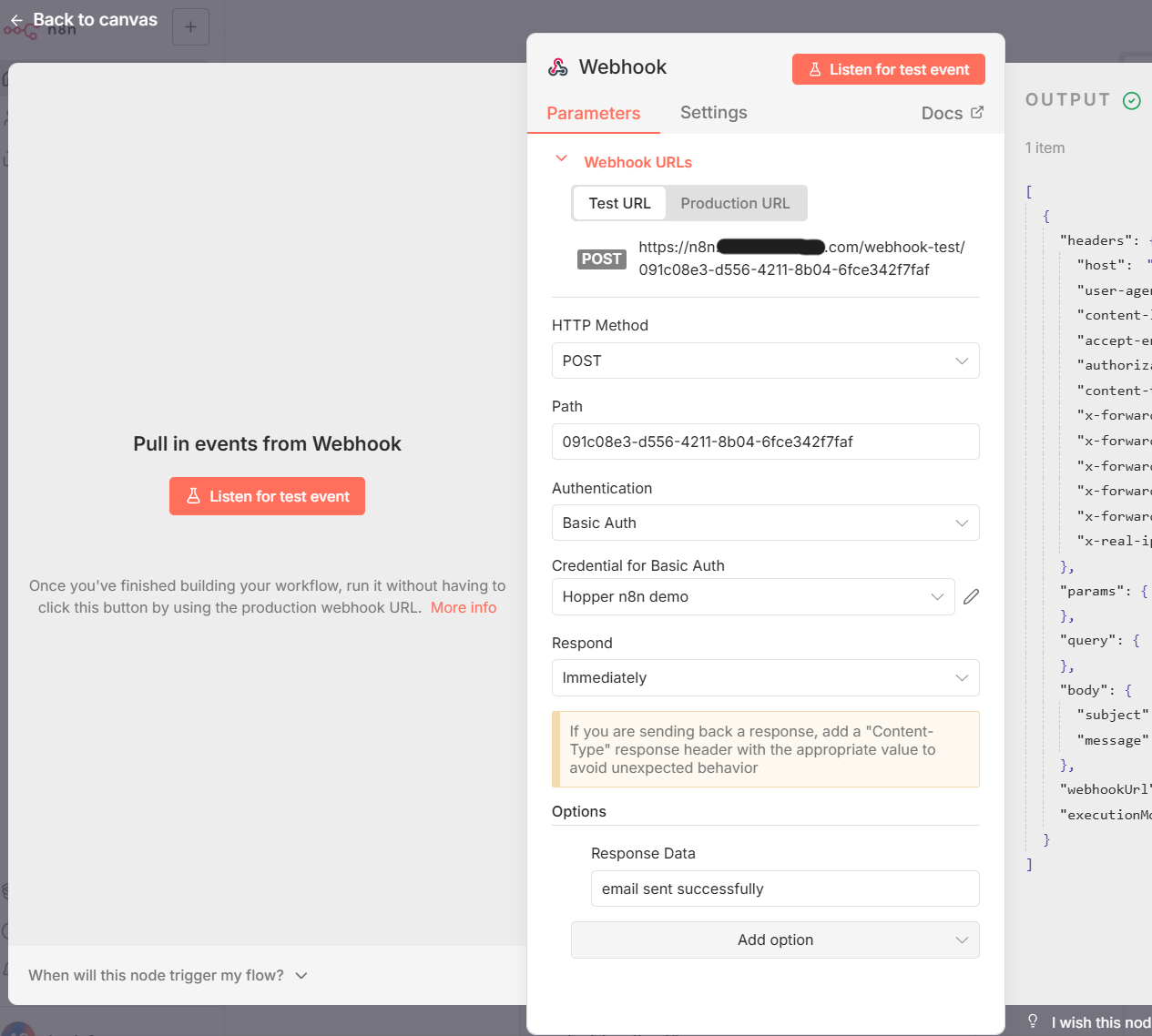
- Configure the Webhook node:
- Set the HTTP Method that's appropriate for triggering your workflow. In my example, I used a POST request so that I can dictate the email's subject and body to Hopper when sending an email using the watch. If you send data via a POST request, you can access the parameters in n8n using
{{ $json.body.parameter_name }}. - Set up Authentication. 'Basic Auth' is the most straight forward and only requires a username and password. Save these credentials as you will be using them when connecting this n8n workflow to Hopper.
- Set Respond to the appropriate field based on your workflow.
- Within Options, select Response Data. This is the message that gets sent back to let Hopper know whether the workflow has completed (When Respond is set to 'When Last Node Finishes') or started running (When Respond is set to 'Immediately').
- Set the HTTP Method that's appropriate for triggering your workflow. In my example, I used a POST request so that I can dictate the email's subject and body to Hopper when sending an email using the watch. If you send data via a POST request, you can access the parameters in n8n using
- Copy the webhook production URL (e.g., https://your-n8n-instance.com/webhook/abc123).
- Save and activate your workflow.
Connecting Hopper to n8n
Next, we'll use Hopper's companion phone app to create a custom tool that calls your n8n webhook:
- Open the Hopper companion phone app
- Tap the Tools icon in the bottom navbar and then Add Tool in the top right
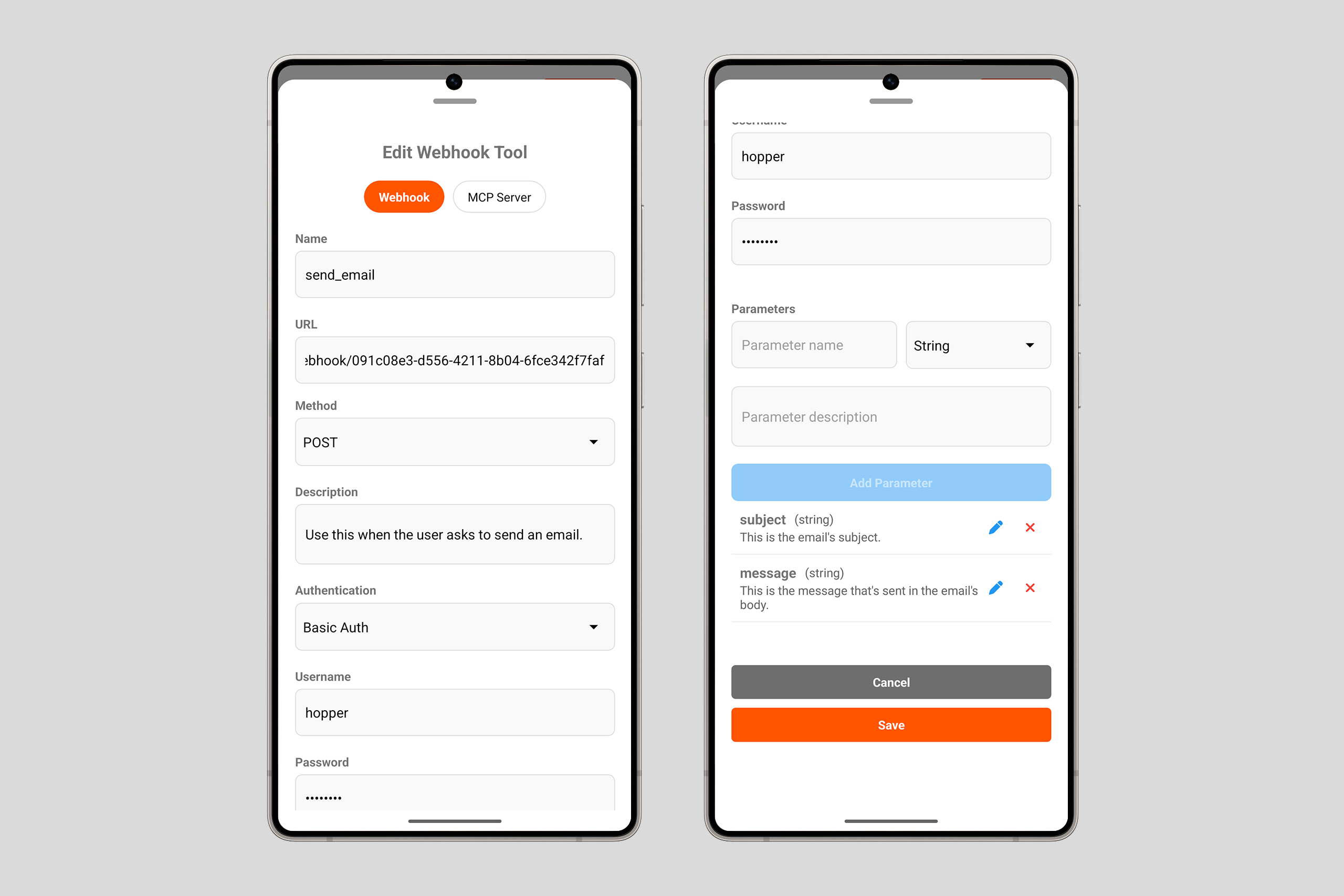
- In the Name field enter a name that describes the tool's action in snake case (Lowercase, separated by underscores. For example, send_email). This will be the tool name.
- In the URL field enter the production URL you copied from the n8n webhook node.
- Set the Method dropdown so that it matches the HTTP Method set up in the n8n webhook node
- In the Description field, enter a clear description of what the tool is supposed to do. Hopper's AI agent uses this to understand the tool's functionality and determine when to call the tool.
- For example, for my "send_email" tool, I used the following description "Use this tool when the user asks to send an email.".
- In the Authentication dropdown choose the authentication method you configured in n8n and enter the credentials.
- The Parameters section lets you configure the values that get sent to the n8n workflow. Similar to tool descriptions, be descriptive with your Parameter descriptions as these are used by Hopper's AI agent to structure the data.
- For example, my "send_email" tool has two parameters, "subject" and "message", and the parameter descriptions are "This is the email's subject." and "This is the message that's sent in the email's body.".
Best Practices
- Use Descriptive Names & Descriptions: Make your tool name and parameter descriptions clear and descriptive so that they describe the intended action accurately and clearly.
- Do a Test Run: Use the Test URL in your webhook node to verify your workflows.
- Secure Your Webhooks: Use authentication to protect your n8n endpoints.
Example Use Cases
Here are some examples of the type of workflows you can trigger from your wrist without the distraction or hassle of a phone:
Smart Home Control: Driving home after a long day and want the house to be warm and cozy? "Turn on heating and set it to 24 degrees" can trigger an n8n workflow that communicates with your smart home devices.
Quick Notes: "Do a deep research on the best smartwatches of 2025 and send me an email with product comparisons and product links" sends data to n8n, which triggers an email. This is possible because Hopper is able to chain tool calls, menaing its able to do a web search and follow it up with another action like sending an email or saving it to notes.
Post on X: "Post this on X insert your most recent random thought ", which triggers a workflow that can create a tweet on X.
Checkout n8n's vast library of workflow automation templates that you can modify for your purposes.
Start automating from your wrist today!
Published in Integration
By Hopper Team